Extend the Lifespan of Your Canon Printer

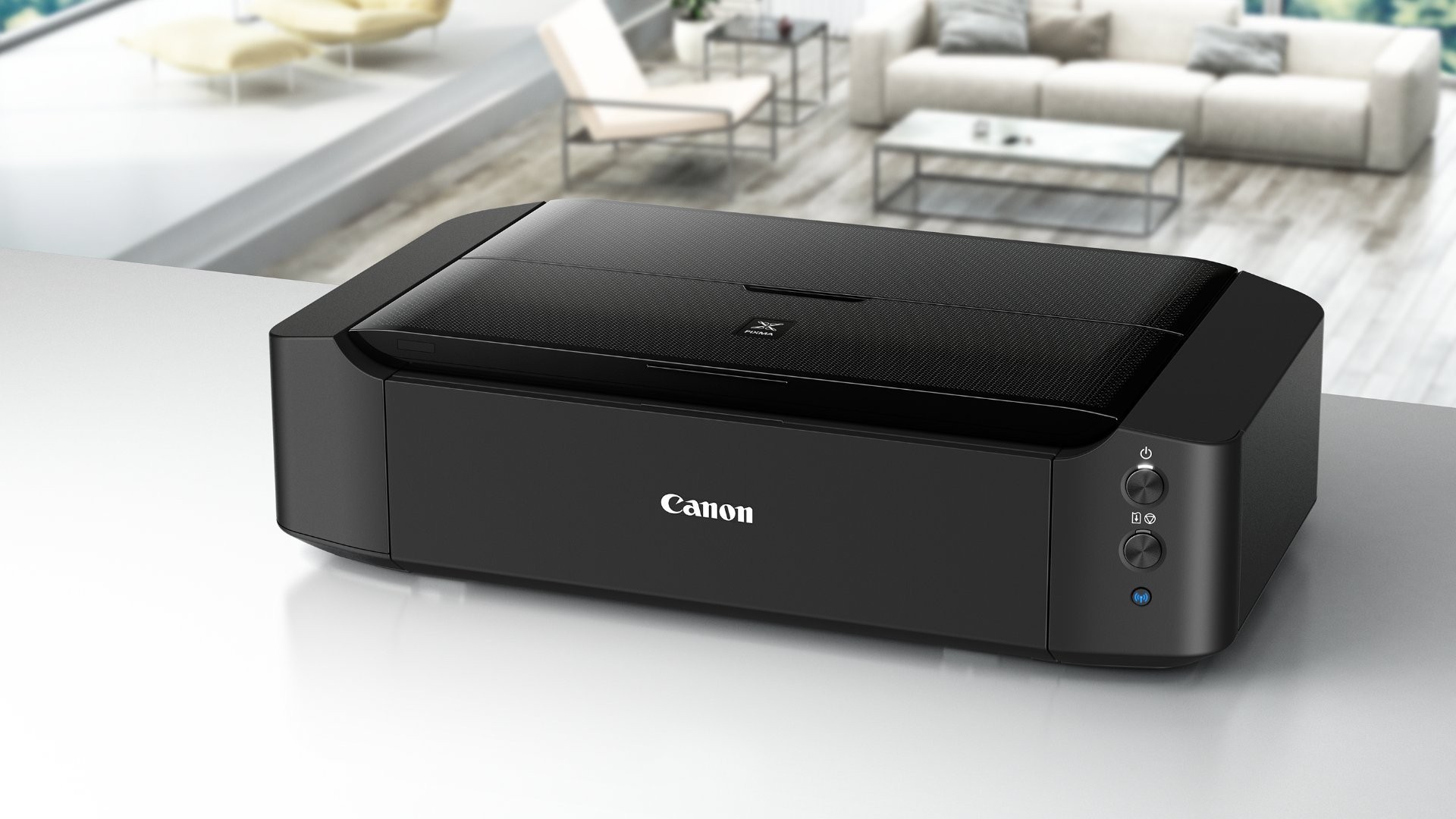
Canon printers are known for their reliability and high-quality performance. However, like any machine, they require proper maintenance to ensure they continue to function smoothly for years. Extending the lifespan of your Canon printer involves a few simple practices that can prevent costly repairs and keep it running efficiently.

1. Keep It Clean

Dust and dirt can accumulate on the printer’s internal components, leading to jams or poor print quality. Regularly clean your Canon printer, especially around the paper feed area, ink cartridges, and scanner glass. Use a soft, lint-free cloth to wipe down the exterior and a can of compressed air to blow away dust from inside.

2. Use High-Quality Paper

The type of paper you use plays a significant role in the printer’s longevity. Low-quality paper can cause paper jams and damage the printer’s rollers. Always opt for high-quality, printer-compatible paper to prevent unnecessary wear and tear on the internal parts.

3. Replace Ink Cartridges Promptly

Running your printer with empty or low ink cartridges can damage the print head. Always replace ink cartridges before they run completely dry. Additionally, using original Canon ink cartridges ensures better print quality and longer-lasting components compared to third-party alternatives.

4. Turn Off Properly

While it may seem convenient to leave your printer on, shutting it down when not in use helps conserve energy and prevents overheating. Always power off your Canon printer after use. Avoid turning it off abruptly by unplugging it; instead, use the proper shutdown method via the printer’s menu to ensure no damage occurs.

5. Keep Firmware Up to Date

Canon frequently releases firmware updates to enhance your printer’s functionality and fix bugs. Ensure your printer’s firmware is always up to date. Regular updates can improve performance, prevent issues, and enhance security, ultimately contributing to the printer’s longevity.

6. Print Regularly

Leaving a printer unused for extended periods can lead to dried ink and clogged print heads. To avoid this, print a test page every few weeks. This helps keep the ink flowing smoothly and prevents clogging in the printer’s nozzles.

7. Store Your Printer Properly

If you plan to store your printer for a while, ensure it’s kept in a dry, dust-free environment. Avoid areas with high humidity or direct sunlight, as this can cause ink cartridges to dry out or lead to electrical malfunctions. Always cover your printer when not in use to protect it from dust and debris.

Extend the Lifespan of Your Canon Printer

8. Perform Regular Maintenance

Canon printers typically have built-in maintenance features, such as print head cleaning and alignment functions. Regularly run these maintenance cycles to keep your printer in top condition. This can help resolve minor issues like print quality problems before they become major concerns.

9. Avoid Overloading the Printer

Respect your printer’s recommended paper capacity to avoid overloading. Too many sheets of paper can strain the rollers and cause jams or other malfunctions. Check the printer’s manual for its maximum paper capacity, and never exceed it.

10. Address Problems Immediately

If you notice any problems, such as print quality issues, paper jams, or error messages, address them promptly. Ignoring small problems can lead to larger, more expensive issues down the road. Consult the printer’s manual or Canon’s customer service for troubleshooting tips and solutions.

Conclusion

By taking simple steps like cleaning your printer regularly, using the right paper, and replacing ink cartridges promptly, you can significantly extend the lifespan of your Canon printer. Proper care ensures your device continues to deliver high-quality prints and reduces the chances of expensive repairs in the future. With a little maintenance and attention, your Canon printer will continue to perform well for years to come.

Canon vs Epson Printers: A Detailed Comparison for Buyers

When choosing a printer, two of the most prominent names in the industry are Canon and Epson. Both companies offer a wide variety of printers for home and office use, each boasting its own strengths. With various models designed for different needs, it can be overwhelming to decide which one suits you best. In this comprehensive guide, we’ll compare Canon and Epson printers in terms of performance, cost, and key features to help you make an informed decision in 2024.


1. Print Quality

Canon Printers

Canon printers are renowned for their photo printing capabilities, particularly in their PIXMA and imagePROGRAF series. Their color accuracy, sharpness, and vibrant output make them a favorite for photographers and creative professionals. Canon’s FINE (Full-photolithography Inkjet Nozzle Engineering) technology allows for precise ink droplet placement, producing high-quality prints.

  • Best For: Photographers, graphic designers, and home users who want high-quality photo prints.

Epson Printers

Epson also excels in print quality, particularly in its EcoTank and SureColor series. Epson’s proprietary PrecisionCore technology offers fast, high-resolution prints, especially for text and graphics. While they are not always as color-rich as Canon’s models, Epson printers are often regarded for their reliable performance in producing sharp text and detailed images, particularly in the business or office environment.

  • Best For: Office settings, business use, and users needing high-quality text documents.

2. Cost of Ownership

Canon Printers

Canon offers both inkjet and laser printers, and the cost of ink is generally competitive. However, with inkjet models, users often face higher costs per page for printing color images. Canon also offers refillable ink tanks in some models like the PIXMA G series, which helps reduce long-term ink costs.

  • Ink Costs: Standard ink cartridges can be expensive, but refillable tank models provide significant savings.
  • Laser Options: Canon’s laser printers (like the imageCLASS series) tend to have lower cost-per-page for text printing.

Epson Printers

Epson stands out with its EcoTank series, which eliminates traditional ink cartridges in favor of refillable tanks. This results in an incredibly low cost-per-page, especially for color prints. The initial cost of an EcoTank printer is higher, but over time, users can save a substantial amount on ink. Epson’s PrecisionCore printers also offer low operating costs, especially when printing in bulk.

  • Ink Costs: The EcoTank system significantly reduces ink costs. However, initial prices for these models may be higher.
  • Laser Options: Epson’s laser printers, such as the WorkForce series, are competitive in terms of efficiency and long-term savings.
Canon vs Epson Printers: A Detailed Comparison for Buyers

3. Performance and Speed

Canon Printers

Canon printers generally offer solid performance with fast print speeds, especially in its laser models. For inkjet printers, Canon excels in delivering high-quality color prints with minimal delay. For example, the PIXMA Pro series can print a high-quality 4×6 photo in under a minute.

  • Speed: Canon’s laser printers are known for their quick print speeds, while inkjets are ideal for detailed photo prints, though they may be slower for high-volume text printing.

Epson Printers

Epson’s PrecisionCore technology provides excellent speed and accuracy. Epson EcoTank printers can print hundreds of pages at a fraction of the cost and time of traditional inkjets. Epson also focuses on reducing the time spent between prints, offering faster text and photo printing in many of their models.

  • Speed: Epson printers offer impressive speeds for both text and images, especially with the WorkForce and EcoTank models, which are great for office and home-office environments.

4. Features and Versatility

Canon Printers

Canon offers a variety of models, from all-in-one printers with scanning and copying functions to specialized photo printers for professional photographers. Many Canon printers feature Wi-Fi and mobile printing options such as Apple AirPrint and Google Cloud Print for convenient wireless printing. Canon’s imagePROGRAF series is particularly popular for high-end, large-format printing in the creative industry.

  • Best Features: Photo printing, Wi-Fi and mobile printing, all-in-one capabilities.
  • Versatility: Ideal for creatives, photographers, and those who require both high-quality photo prints and office documents.

Epson Printers

Epson printers, particularly the EcoTank and WorkForce series, tend to focus on business-oriented features like high-volume printing, automatic two-sided printing, and cloud printing. They also have strong mobile printing capabilities and offer features like auto document feeders in some models. Epson’s SureColor series targets professional photographers, providing top-tier photo printing similar to Canon.

  • Best Features: High-volume printing, low operating costs, high-resolution printing.
  • Versatility: Perfect for businesses that need a mix of color and black-and-white printing with low maintenance.

5. Ease of Use and Setup

Canon Printers

Canon printers are typically easy to set up with user-friendly software and a straightforward installation process. Their intuitive control panels and mobile apps like Canon PRINT allow for smooth printing from various devices. While some models can be complex due to their advanced features, the PIXMA and imageCLASS series are beginner-friendly.

Epson Printers

Epson also provides an easy setup with Epson Smart Panel apps and clear installation instructions. The EcoTank models, in particular, are praised for being relatively low-maintenance after setup. Some higher-end models have slightly more complex setups, but these are usually aimed at businesses rather than home users.


6. Durability and Build Quality

Canon Printers

Canon is known for its durable build quality, especially in its laser printers and professional-grade imagePROGRAF series. While the inkjet models are generally reliable, they may wear out more quickly in high-volume settings compared to Epson’s EcoTank models.

Epson Printers

Epson printers are often built to last with high-quality materials. The EcoTank series, for instance, offers long-lasting performance without frequent maintenance. Epson’s WorkForce and SureColor models are also designed for heavy use, making them great options for small and medium businesses.


Conclusion: Which is Better for You?

The choice between Canon and Epson largely depends on your specific needs.

  • Canon printers excel in photo printing and creative tasks, making them ideal for photographers and individuals who need high-quality images and versatile printers.
  • Epson shines in terms of low operating costs, especially with its EcoTank series, making it a great option for businesses or users who need a high-volume printer at a low cost.

Ultimately, both brands offer excellent choices, but Canon is more suited for those focused on photography or artistic prints, while Epson is perfect for businesses looking for long-term savings and efficiency in bulk printing.

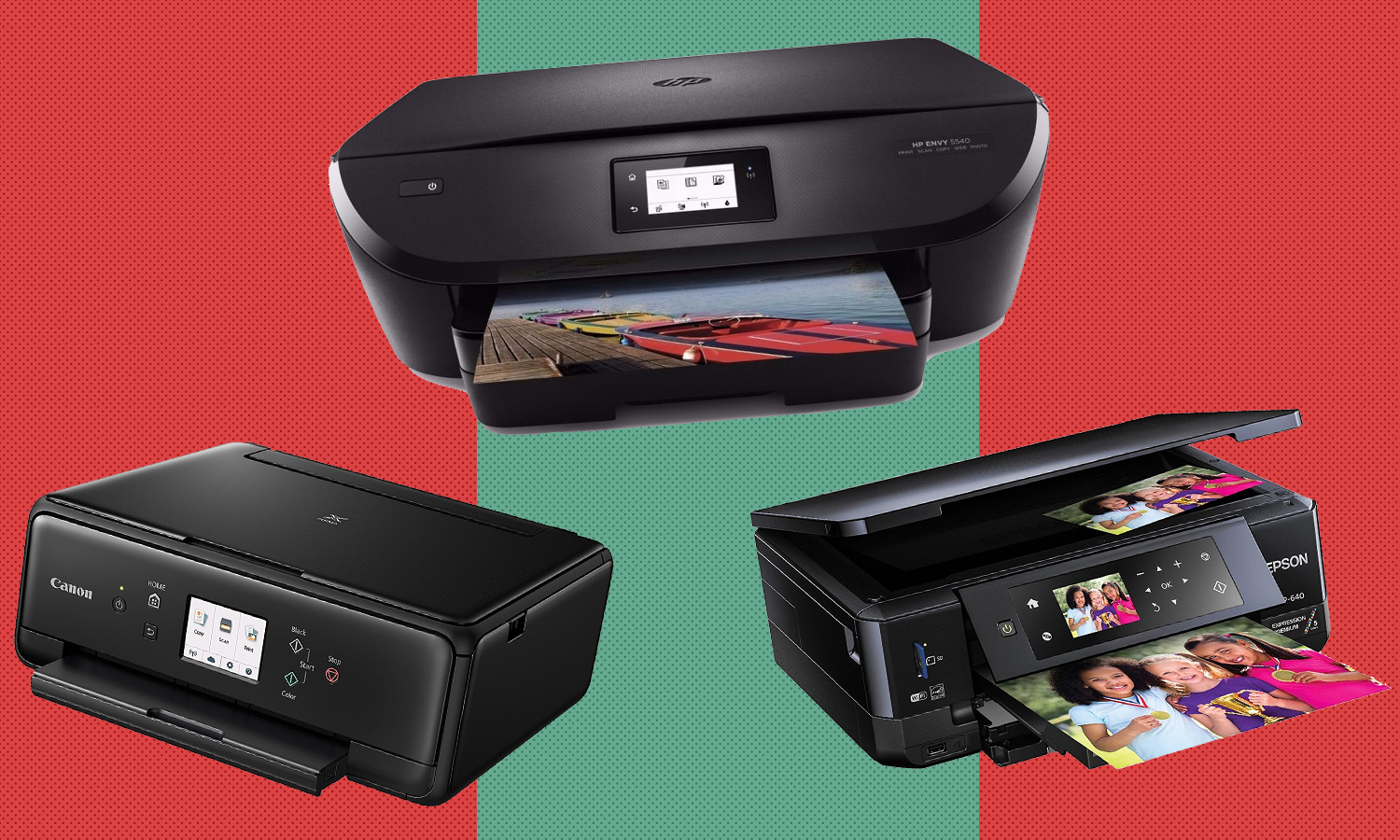
Canon Printers vs. Competitors: Which One Stands Out?

In today’s printer market, Canon has established itself as one of the top brands, known for producing high-quality and reliable printers. However, it’s not alone in the race. Competing brands such as HP, Epson, and Brother also offer impressive printer models. Each brand has its strengths and weaknesses, and choosing the right one for your needs can be overwhelming. In this article, we’ll compare Canon printers to some of its main competitors, helping you decide which one truly stands out.

Quality of Print Output

When it comes to print quality, Canon printers are renowned for their sharp, vibrant, and consistent color reproduction. Whether you’re printing photos, documents, or professional-grade designs, Canon printers often deliver high resolution and accurate colors. Their inkjet technology is especially praised for photo printing, producing excellent detail and rich tones.

HP printers, on the other hand, are also known for high-quality prints, particularly when it comes to text and document printing. However, their photo quality doesn’t always match Canon’s level of detail. Epson is another competitor that excels in photo printing, often offering superior results for professional photographers. Epson’s printers use a unique ink system designed to produce better color depth, making them a strong competitor in the high-end photo print market.

Brother printers tend to focus more on affordable, everyday printing, with a strong emphasis on speed and durability. While their print quality is good for general use, they fall short when it comes to photo printing and color accuracy compared to Canon, Epson, or HP.

Ease of Use and Features

Canon printers often stand out for their user-friendly design and intuitive interfaces. Their printers typically feature simple touchscreen controls, easy setup, and integration with popular software and devices. Canon also offers various wireless options, including Wi-Fi, Bluetooth, and cloud printing, making it easy to print from smartphones, tablets, and laptops.

HP printers are also known for their easy setup and integration with various devices. HP’s Smart app offers additional convenience by enabling users to print and scan directly from their phones. Moreover, HP has a wider selection of models designed for different needs, from home office printers to large-format printing, giving users more flexibility.

Epson’s printers often come with advanced features, like precision printing for photo reproduction and the ability to print on a wide range of media types. However, Epson printers can be slightly more complex to set up and operate, especially for beginner users.

Brother printers are generally straightforward to use and easy to set up. They focus on providing solid performance for home offices and small businesses, offering features like high-speed printing and efficient paper handling. However, they may not offer as many advanced or customizable features as Canon, Epson, or HP printers.

Cost and Value for Money

Cost is a major factor when choosing a printer, and this is where Canon stands out. Canon printers typically offer a great balance between quality and affordability, with models ranging from budget-friendly options to high-end professional printers. The cost of ink cartridges for Canon printers is also relatively low compared to competitors, helping to keep operational costs manageable over time.

HP printers can be a bit pricier, especially their more advanced models. However, HP’s Instant Ink program, which automatically delivers ink refills based on usage, helps users save money on ink over time. HP printers may have higher upfront costs, but their long-term value is enhanced through these subscription services.

Epson, while offering high-quality photo printing, can be expensive to maintain. The ink cartridges for Epson printers tend to be more costly than Canon’s, and some models require specialized ink that can add up over time. However, Epson’s EcoTank series, which uses refillable ink tanks instead of traditional cartridges, can save users money in the long run.

Brother printers are known for being affordable, especially when it comes to high-volume printing. Their printers tend to have low operational costs, especially for text-heavy documents, making them ideal for small offices or businesses that require efficient, low-cost printing.

Canon Printers vs. Competitors: Which One Stands Out?

Speed and Efficiency

Canon printers generally provide fast printing speeds, especially in their higher-end models. For instance, their PIXMA and imagePROGRAF series are known for quickly producing high-quality prints. However, in terms of printing efficiency, Canon may not always be the fastest in comparison to some competitors.

HP printers tend to be faster when it comes to document printing, especially with their LaserJet series. These printers are known for their speed, particularly in high-volume office settings. HP also focuses on high print yields, which means they can handle large print jobs with ease.

Epson’s speed is comparable to Canon’s, but their focus on photo printing sometimes means slightly slower output when dealing with high-quality images. However, their EcoTank models are designed for greater efficiency, with fewer interruptions for ink replacements and more printing per refill.

Brother printers are some of the fastest in the market, especially for monochrome printing. Their laser printers are known for delivering high-speed output for text-based documents, making them ideal for home offices and businesses that need to print large volumes quickly.

Customer Support and Reliability

Canon, HP, Epson, and Brother all offer reliable customer support and warranties. Canon has a reputation for excellent customer service and is known for its efficient repair process. Many Canon printers come with solid warranties, and their support website is comprehensive and easy to navigate.

HP is also praised for its customer support, with helpful online resources and phone support available. They offer a range of extended warranties and service plans, making them a solid choice for business users who require quick repairs and replacements.

Epson offers solid customer support as well, but some users report longer wait times for technical assistance compared to Canon or HP. However, their support team is knowledgeable, and their website is full of useful guides and troubleshooting tips.

Brother’s customer service tends to be more geared toward businesses, with support focused on helping small office environments. While their response time is quick, some users may find it less personal than the support offered by Canon or HP.

Conclusion

When comparing Canon printers to its competitors—HP, Epson, and Brother—it’s clear that Canon stands out for its color accuracy, affordability, and user-friendly design. HP offers excellent features for business and speed, while Epson excels in photo printing, and Brother is the go-to option for cost-effective, high-speed printing. Ultimately, the best choice depends on your specific needs, such as print quality, speed, budget, and the type of printing you do most frequently.

Understanding Canon’s All-in-One Printers for Office Use

In today’s fast-paced business world, productivity and efficiency are essential, and Canon’s all-in-one printers are built to meet these demands. Whether you run a small home office or manage a large corporate environment, these multifunction devices combine multiple printing, scanning, copying, and sometimes faxing functions into a single, space-saving machine. This guide provides a comprehensive look at Canon’s all-in-one printers, exploring their features, advantages, and why they are a smart choice for any office setup.


What is an All-in-One Printer?

An all-in-one printer, as the name suggests, integrates several essential functions into one device. These multifunction printers (MFPs) are designed to streamline office workflows by offering printing, scanning, copying, and, in some cases, faxing capabilities in a single machine. Canon’s all-in-one printers come in both inkjet and laser models, making them suitable for various business needs.


Key Features of Canon All-in-One Printers

Canon has consistently impressed with its line of all-in-one printers, offering models equipped with a variety of features that can boost productivity in an office environment. Here’s what you can expect:

1. Printing Functionality

  • High-Quality Prints: Whether you need to print marketing materials, important documents, or high-resolution photos, Canon’s all-in-one printers deliver crisp, professional-quality prints.
  • Wireless Printing: Many models offer Wi-Fi connectivity, allowing you to print from smartphones, tablets, and computers without needing physical cables. Mobile printing apps like Canon PRINT Inkjet/SELPHY, Apple AirPrint, and Google Cloud Print are also supported for effortless printing from multiple devices.

2. Scanning

  • High-Resolution Scanning: Most Canon all-in-one printers come with a flatbed scanner, providing high-quality scans of documents and photos.
  • Document Feeding: Advanced models may also feature an Automatic Document Feeder (ADF), which allows you to scan or copy multiple pages at once, making them ideal for high-volume office environments.

3. Copying

  • Quick and Efficient: Canon’s copy functionality makes it easy to duplicate documents in various sizes and formats with a push of a button. Features like ID card copy or borderless copying are available on certain models for added convenience.
Understanding Canon’s All-in-One Printers for Office Use

4. Faxing

  • Fax Capability: Some all-in-one models still come with the ability to send and receive faxes, which can be crucial for businesses that rely on fax communication.

5. Touchscreen Interface

  • User-Friendly Control Panel: Canon’s all-in-one printers are often equipped with a touchscreen control panel that simplifies navigation and setup. The interface is intuitive, making it easy for anyone in the office to operate the device.

Benefits of Canon All-in-One Printers for Office Use

1. Space-Saving Design

  • By combining multiple devices into one, Canon all-in-one printers save valuable desk or office space. This is particularly helpful in small office settings where space is limited.

2. Cost-Efficient

  • Instead of purchasing separate printers, scanners, and copiers, an all-in-one model offers all of these functions for a single price. Over time, this can save businesses a significant amount of money.

3. Increased Productivity

  • With the ability to print, scan, copy, and fax in one device, employees don’t need to switch between multiple machines. This efficiency reduces downtime and increases workflow productivity.

4. Cloud Integration

  • Many Canon all-in-one printers support cloud-based printing solutions. This integration allows you to print documents stored on Google Drive, Dropbox, or other cloud services directly from the printer, simplifying document management.

5. Energy Efficiency

  • Canon’s all-in-one printers are designed to be energy-efficient, reducing power consumption while offering fast, high-quality prints and scans. This makes them both eco-friendly and cost-effective in the long run.

How to Choose the Right Canon All-in-One Printer for Your Office

Choosing the best Canon all-in-one printer for your office depends on several factors, including print volume, desired features, and budget. Here are a few things to consider:

1. Print Volume

  • If your office deals with high-volume printing, consider Canon’s laser all-in-one printers like the Canon imageCLASS series, which offer fast print speeds and are built for larger print volumes. For smaller businesses or home offices, the Canon PIXMA series offers great versatility with color printing at a lower price point.

2. Print Quality

  • If your office requires high-quality photo prints or color documents, the PIXMA or MAXIFY series will suit your needs with excellent photo print capabilities. For professional-grade color printing, the PIXMA Pro series provides exceptional results for photographers or creative professionals.

3. Connectivity

  • Ensure the printer supports your desired connectivity options, whether it’s wireless printing, Ethernet, or cloud printing. Most Canon all-in-one printers support Wi-Fi, mobile printing, and cloud printing, but if you need specific connectivity features, verify the printer model beforehand.

4. Cost of Ownership

  • Consider the cost of ink or toner cartridges, as well as the printer’s energy efficiency. Canon’s all-in-one models like MAXIFY are known for offering low-cost printing, especially in black-and-white printing scenarios.

5. Size and Space

  • Make sure the printer’s size fits your office space. Canon offers compact models for home offices or shared spaces, as well as larger models for high-volume office use.

Top Canon All-in-One Printers for Office Use in 2024

Here are a few of the top Canon all-in-one printers for office use in 2024:

  • Canon imageCLASS MF743Cdw: A color laser printer that’s ideal for medium to large office environments. It offers fast printing, mobile printing options, and low cost per page.
  • Canon PIXMA TR8620: A versatile inkjet all-in-one suitable for small businesses or home offices. It offers high-quality printing, scanning, and copying along with wireless and mobile printing capabilities.
  • Canon MAXIFY GX7020: A great choice for high-volume printing needs with its refillable ink tank system that offers incredibly low printing costs per page.

Conclusion

Canon’s all-in-one printers are a smart investment for any office, providing the convenience of multiple devices in one compact machine. Whether you need to print, scan, copy, or fax, these multifunction printers are designed to enhance productivity, save space, and reduce costs. By choosing the right Canon model for your office’s needs, you can streamline your workflows and improve overall efficiency, making it an essential tool in today’s business world.

Wireless Printing Made Easy: A Guide to Canon’s Wi-Fi Printers

In today’s fast-paced world, convenience and efficiency are key, and wireless printing has become an essential feature for both home and office environments. Canon, a leader in printing technology, offers a range of Wi-Fi-enabled printers that make it easier than ever to print from virtually anywhere. Whether you’re working from home, printing from your smartphone, or sending documents from another room, Canon’s Wi-Fi printers streamline the printing process and eliminate the need for cables.

In this guide, we’ll walk you through the benefits of wireless printing with Canon printers, how to set up your Wi-Fi printer, and some tips for troubleshooting common issues.


Why Choose Canon Wi-Fi Printers?

Canon has built a reputation for producing high-quality printers, and their Wi-Fi-enabled models are no exception. Here are a few reasons why choosing a Canon Wi-Fi printer is a smart decision:

  1. Convenience: Wireless printing means no need for physical connections between your printer and your devices. You can print from your smartphone, tablet, or laptop from anywhere in your home or office, as long as you’re connected to the same Wi-Fi network.
  2. Multiple Device Connectivity: Canon printers support a variety of devices, including Windows PCs, Macs, and mobile devices (iOS and Android). This cross-platform compatibility allows for seamless printing across multiple devices, whether you’re at home or in a shared office space.
  3. Mobile Printing Solutions: Canon’s mobile printing apps, such as the Canon PRINT Inkjet/SELPHY app and Apple AirPrint, enable easy printing directly from smartphones and tablets. These apps support a range of documents and photo formats, making it simple to print from anywhere.
  4. Cloud Printing: Many Canon printers also support Google Cloud Print or Mopria Print Service, enabling printing directly from cloud services like Google Drive, Dropbox, and OneDrive. This feature makes accessing and printing your documents even easier, without needing to download them to your device first.

How to Set Up Canon Wi-Fi Printers

Setting up a Canon Wi-Fi printer is relatively simple and can be done in just a few steps. Here’s a basic guide to getting your Canon Wi-Fi printer up and running:

Wireless Printing Made Easy: A Guide to Canon’s Wi-Fi Printers

1. Prepare Your Printer

  • Unbox your Canon Wi-Fi printer and place it on a flat surface.
  • Ensure your printer is powered on and ready to be connected.

2. Connect Your Printer to Wi-Fi

  • Using the Printer’s Control Panel: Most Canon Wi-Fi printers have an easy-to-use control panel with an Auto Wi-Fi Connect feature. Simply follow the on-screen prompts to connect your printer to your home or office Wi-Fi network.
  • Wi-Fi Direct: If you don’t have a router or prefer a direct connection, many Canon printers offer Wi-Fi Direct. This allows your printer to connect directly to your device without the need for a network.
  • Using WPS: If your router supports Wi-Fi Protected Setup (WPS), this is another quick and secure way to connect your Canon printer to the Wi-Fi network.

3. Install Printer Drivers and Software

  • Visit Canon’s official website to download the latest printer drivers and software for your specific model.
  • Once the software is installed, follow the on-screen instructions to complete the setup process.

4. Connect Devices to Printer

  • For PCs and laptops, simply add the printer via the Windows or Mac print settings by selecting your Canon printer from the available network printers.
  • For mobile devices, download the Canon PRINT Inkjet/SELPHY app from the App Store or Google Play Store, then follow the instructions to add your printer. You’ll be able to print photos, documents, and web pages directly from your phone or tablet.

Tips for Optimizing Your Canon Wi-Fi Printer

Once your Canon Wi-Fi printer is set up, here are some tips for ensuring it works smoothly:

1. Ensure Strong Wi-Fi Connection

  • Make sure your printer is within range of your router to ensure a stable connection. A weak Wi-Fi signal can lead to slow or failed print jobs.

2. Use a Static IP Address

  • If you have a lot of devices connected to your Wi-Fi network, consider assigning a static IP address to your printer. This can help prevent connectivity issues and ensure your printer is always accessible.

3. Keep Printer Software Updated

  • Regularly check for firmware and driver updates on Canon’s official website. New updates often include performance improvements and bug fixes, ensuring your printer operates at its best.

4. Monitor Ink and Paper Levels

  • Many Canon Wi-Fi printers allow you to check ink and paper levels remotely. This feature helps you avoid running out of ink or paper during print jobs, minimizing interruptions.

Troubleshooting Common Canon Wi-Fi Printer Issues

While wireless printing is highly convenient, you might occasionally run into issues. Here are some common problems and how to fix them:

Printer Not Connecting to Wi-Fi

  • Double-check your Wi-Fi network name and password.
  • Ensure the Wi-Fi signal is strong where the printer is located.
  • Restart both your router and the printer to reset the connection.

Print Jobs Stuck in Queue

  • Cancel the stuck print jobs from the printer queue and try printing again.
  • Restart the printer and the device you’re printing from, and then resend the print job.

Poor Print Quality

  • Run a print head cleaning on your Canon printer to fix issues with ink flow.
  • Use high-quality paper and ensure the ink cartridges are full or properly installed.

Conclusion

Canon’s Wi-Fi printers are an excellent solution for anyone looking to simplify their printing tasks. With seamless wireless connectivity, mobile printing capabilities, and easy setup, these printers allow you to print documents, photos, and more with just a few taps. Whether you’re at home, in the office, or on the go, Canon’s Wi-Fi printers make printing easier and more convenient than ever before.

Canon Printers in Professional Graphic Design

When it comes to graphic design, precision, color accuracy, and high-quality output are crucial. Canon printers play a vital role in ensuring that designers can bring their visions to life with the utmost detail. Whether for creating mockups, printing final projects, or producing marketing materials, Canon printers provide graphic designers with the tools they need to deliver professional results. In this article, we’ll explore the essential role Canon printers play in the graphic design world and how they help meet the unique demands of designers.

High-Quality Color Reproduction

One of the primary reasons why Canon printers are so popular among graphic designers is their excellent color reproduction. Graphic design often relies on precise colors to communicate a brand’s message or evoke specific emotions. Canon’s inkjet technology, combined with its proprietary color management systems, ensures that the colors you see on screen are as close as possible to what comes out on paper.

With Canon printers, you can expect vibrant colors, deep blacks, and subtle gradients that enhance your designs. The ability to print with professional-grade accuracy allows designers to meet client expectations and create materials that stand out. Additionally, many Canon printers are equipped with advanced features like color calibration, which ensures that your prints maintain consistency over time.

Versatility for Different Media

Graphic designers often work with a variety of materials, from standard paper to specialty media such as canvas, photo paper, and vinyl. Canon printers offer versatility in this area, providing a wide range of options for different types of media. Their ability to handle various paper sizes and thicknesses makes them ideal for printing everything from business cards and brochures to posters and large-format banners.

The versatility of Canon printers also extends to their compatibility with different types of files, including raster and vector formats. This flexibility allows designers to print their work in various styles and scales, whether they are printing a detailed logo or a high-resolution photo.

Precision and Detail

Another key benefit of using Canon printers in graphic design is their ability to produce highly detailed prints. Many Canon printers come with high resolution, which is essential for printing intricate designs with fine lines and textures. This is especially important in graphic design where attention to detail can make all the difference in the final product.

Canon’s professional printers, like the imagePROGRAF and PIXMA series, feature high DPI (dots per inch) settings, enabling designers to print images with razor-sharp precision. Whether it’s a business logo, a photograph, or a detailed illustration, Canon printers deliver the level of detail necessary to showcase the designer’s skill and creativity.

Time Efficiency for Fast-Paced Work Environments

Graphic design is often a fast-paced field, with tight deadlines and multiple revisions. Canon printers are known for their speed and reliability, making them essential tools in busy design studios. With fast print speeds and the ability to handle high-volume print jobs, Canon printers allow designers to focus more on their creative work and less on waiting for prints.

Additionally, Canon’s software and hardware integration make it easier for designers to streamline their workflow. With features like wireless printing and the ability to print directly from design software, designers can save valuable time and increase productivity.

 Canon Printers in Professional Graphic Design
Canon Printers in Professional Graphic Design

Cost-Effectiveness for Professional Print Jobs

While Canon printers are known for their high-quality output, they are also designed to be cost-effective for professionals. Canon offers a range of printers that are specifically geared toward graphic designers who need to manage printing costs without sacrificing quality. The availability of high-yield ink cartridges and efficient ink systems means that designers can produce high-quality prints without worrying about frequent cartridge replacements or ink waste.

Moreover, Canon’s printers are designed to work with a variety of paper types, so designers can choose the most cost-effective options for their projects. Whether you need to print short runs of flyers or large-format designs for clients, Canon printers help you keep your printing costs manageable while still achieving professional results.

Conclusion

Canon printers play an indispensable role in the world of professional graphic design. Their ability to deliver accurate color reproduction, precision, and versatility allows designers to bring their creative visions to life with exceptional quality. Whether printing for clients, creating marketing materials, or producing high-resolution mockups, Canon printers provide graphic designers with the tools they need to succeed in a competitive field. By offering fast, cost-effective, and reliable printing solutions, Canon helps graphic designers meet the demands of the industry and deliver stunning results.

The Best Canon Printers for Professional Photographers

For professional photographers, choosing the right printer is crucial to producing high-quality prints that accurately represent their work. Canon, renowned for its superior printing technology, offers a range of printers tailored to the needs of photographers—from advanced color accuracy to fine detail and texture reproduction. Here’s a guide to some of the best Canon printers for photographers in 2024.


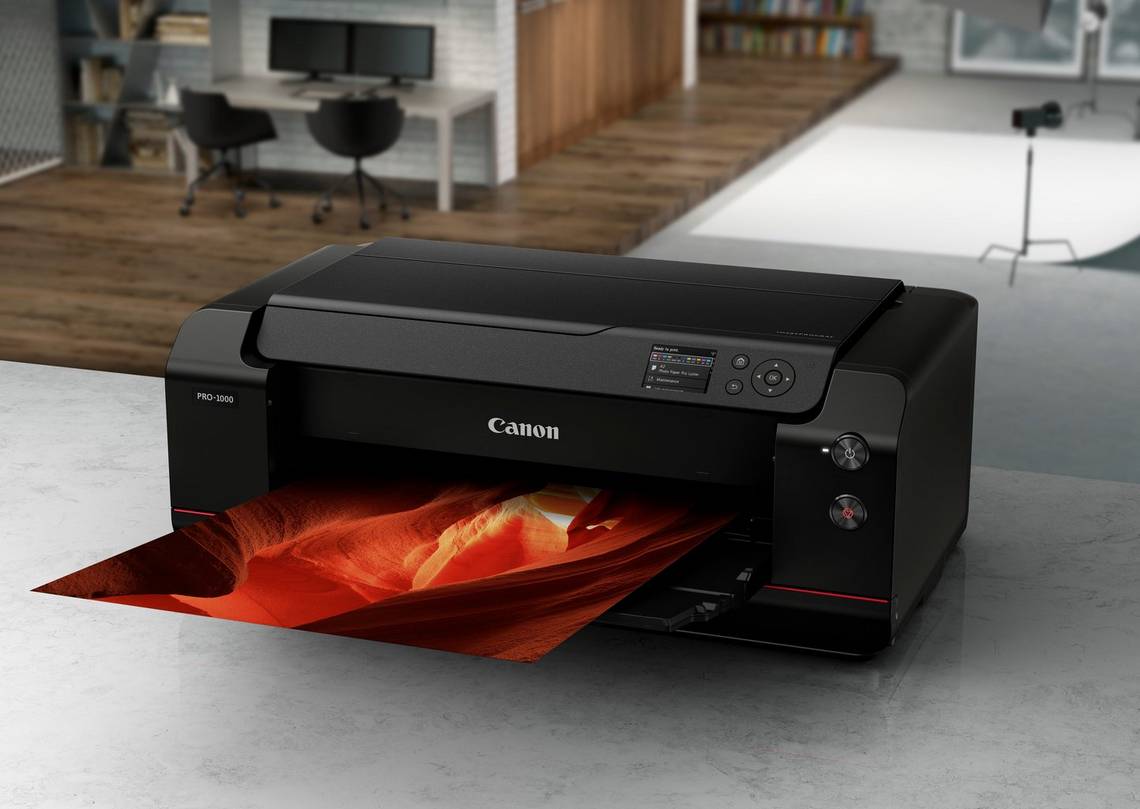
1. Canon imagePROGRAF PRO-1000

Best for: Professional photographers looking for exceptional photo quality and color accuracy.

The Canon imagePROGRAF PRO-1000 is widely regarded as one of the top printers for professional photographers. This 17-inch printer delivers stunning print quality with its LUCIA PRO ink system that ensures rich colors, smooth gradations, and excellent black-and-white prints.

Key Features:

  • 12-color LUCIA PRO ink system for enhanced color accuracy and depth.
  • Professional-grade color management with Adobe RGB compatibility.
  • Print sizes up to 17 x 22 inches, ideal for gallery and exhibition-quality prints.
  • High-resolution printing with 2400 x 1200 dpi for ultra-sharp detail.
  • Excellent black-and-white printing with minimal grain or color shifts.

This printer is perfect for photographers who require high-quality prints with a wide color gamut and professional-grade detail.


2. Canon PIXMA PRO-10S

Best for: Photographers on a budget who still want superior print quality.

The Canon PIXMA PRO-10S is a more affordable option for photographers who want great print quality without breaking the bank. Featuring a 10-color pigment ink system, it produces exceptional prints with deep, accurate colors and a high level of detail, making it a favorite for both studio and home use.

Key Features:

  • 10-color LUCIA pigment ink system for detailed and vibrant color reproduction.
  • Print sizes up to 13 x 19 inches—ideal for professional portfolios.
  • Wi-Fi and cloud printing for easy mobile and remote printing.
  • Chroma Optimizer that enhances print texture and glossiness for a true-to-life finish.
  • Color calibration via Canon’s professional software to ensure precise output.

The PIXMA PRO-10S is a fantastic printer for photographers who want professional-quality prints without the hefty price tag.

The Best Canon Printers for Professional Photographers

3. Canon imagePROGRAF PRO-300

Best for: Photographers who need versatility and the ability to print large formats.

The Canon imagePROGRAF PRO-300 is a great option for photographers looking for a balance between professional-grade quality and affordable pricing. It’s a 13-inch printer that uses the LUCIA PRO ink system, offering excellent color accuracy, smooth gradations, and vibrant prints. The PRO-300 supports printing on a variety of media types, from glossy to fine art papers, making it a versatile tool for photographers.

Key Features:

  • 10-color LUCIA PRO ink system for professional-level prints with rich, accurate colors.
  • Wider color gamut and high-definition prints, making it ideal for fine art photography.
  • Prints up to 13 x 19 inches for larger photo prints.
  • Wi-Fi and Ethernet connectivity for easy setup and integration into your workflow.
  • Advanced media handling that allows you to print on various paper types, including canvas, fine art, and matte papers.

Perfect for photographers who require large prints with color accuracy and versatility, the imagePROGRAF PRO-300 is a solid choice for any professional.


4. Canon PIXMA PRO-100

Best for: Entry-level photographers who want professional-grade prints.

The Canon PIXMA PRO-100 is another excellent option for those looking for a budget-friendly, high-quality printer. This model is particularly known for its 8-color dye-based ink system, which ensures vibrant, true-to-life colors, making it ideal for photographers working with portraits, landscapes, and other types of color-intensive images.

Key Features:

  • 8-color dye-based ink system that offers rich, vibrant colors and smooth gradients.
  • Prints up to 13 x 19 inches—perfect for smaller to medium-sized prints.
  • Wi-Fi and Ethernet connectivity for seamless integration into your workspace.
  • Easy-to-use interface with Canon’s printing software, making it simple for photographers to start printing high-quality images quickly.
  • Dedicated color management system for consistent output.

If you’re an entry-level photographer looking to step up your print quality, the PIXMA PRO-100 is a great way to achieve professional results at a reasonable price.


5. Canon imagePROGRAF PRO-2100

Best for: Professional photographers needing large format prints for galleries or exhibitions.

The Canon imagePROGRAF PRO-2100 is a powerhouse designed for photographers who demand high-end, large-format prints. With a 24-inch print width and the LUCIA PRO ink system, this printer can produce striking prints with incredible detail and color precision. Its advanced features make it suitable for professional studios, galleries, and those who print large photo collections.

Key Features:

  • 12-color LUCIA PRO pigment ink system for professional-grade prints with exceptional color depth.
  • Print sizes up to 24 inches wide, perfect for large photo prints, banners, and fine art.
  • Advanced color calibration tools for accurate and consistent output.
  • High-definition printing at 2400 x 1200 dpi for sharp, crisp images.
  • Wide media compatibility for printing on canvas, fine art papers, glossy photo papers, and more.

For photographers who require large-scale, exhibition-quality prints, the imagePROGRAF PRO-2100 delivers outstanding results.


6. Canon PIXMA TS9521C

Best for: Photographers who also need a multi-functional printer for home use.

The Canon PIXMA TS9521C is a versatile all-in-one printer with a variety of functions, including printing, scanning, and copying. It features a 5-color ink system, which provides great photo printing capabilities, making it ideal for home photographers who need to handle both everyday printing tasks and occasional high-quality photo prints.

Key Features:

  • 5-color ink system for vibrant color prints, including high-quality photos.
  • Prints up to 11 x 17 inches, making it perfect for medium-sized photos and projects.
  • Wireless printing through Wi-Fi, Bluetooth, and cloud-based services for convenience.
  • Borderless printing for edge-to-edge photo prints.

Although it doesn’t match the high-end professional printers in terms of color accuracy and size, the PIXMA TS9521C is a great affordable choice for photographers who need versatility and decent quality for home-based projects.


Conclusion

Choosing the right Canon printer is essential for professional photographers looking to produce high-quality prints that truly reflect their work. Whether you’re printing gallery-worthy pieces, personal portfolios, or simply everyday photos, Canon offers a wide range of printers that can meet your needs. From the high-performance imagePROGRAF PRO-1000 to the versatile PIXMA PRO-100, each printer provides unique features to ensure your photos are printed with precision and color accuracy. Select the one that fits your specific requirements, and elevate your photography game with exceptional prints every time.

Canon Ink vs. Third-Party Ink: Pros and Cons

When it comes to buying ink for your Canon printer, one of the key decisions you’ll face is whether to go for genuine Canon ink or opt for third-party alternatives. Both options have their own set of advantages and drawbacks, and understanding these can help you make an informed choice. In this article, we will explore the pros and cons of Canon ink and third-party ink to help you decide which is the best option for your printing needs.

Canon Ink: The Benefits

1. High-Quality Prints

One of the major advantages of using Canon ink is the high-quality results it delivers. Genuine Canon ink is specially designed for Canon printers, ensuring that the ink flows smoothly and that the printheads are not clogged. Whether you’re printing documents or photos, Canon ink produces sharp, vibrant colors and clear text with consistent results.

2. Compatibility

Canon ink cartridges are specifically engineered for use with Canon printers, which means they offer optimal compatibility. You won’t have to worry about any issues with ink not being recognized by the printer, which can sometimes happen with third-party options. This also helps avoid potential error messages or malfunctions that might occur when using non-branded ink.

3. Reliable Performance

Using Canon ink guarantees a reliable printing experience. Canon engineers ensure their ink is tested for performance and longevity, which can prevent issues like color fading or ink smudging. You’re also more likely to experience fewer printhead clogs or malfunctioning if you use the recommended ink.

Canon Ink: The Drawbacks

1. Higher Cost

One of the biggest downsides of Canon ink is the price. Genuine Canon cartridges can be significantly more expensive than third-party alternatives. This cost can add up, especially if you do a lot of printing. For those on a budget or looking to cut printing expenses, this can be a major deterrent.

2. Limited Availability

In some cases, Canon ink cartridges may not be as readily available as third-party options, especially if you’re looking for a specific model or cartridge type. This could be frustrating if you run out of ink and need it immediately.

Third-Party Ink: The Benefits

1. Lower Cost

The biggest advantage of third-party ink is its affordability. These inks are often much cheaper than Canon’s genuine cartridges. For high-volume printing, using third-party ink can result in significant cost savings. If you’re looking to print frequently without breaking the bank, third-party ink may be a practical choice.

2. Wide Availability

Third-party ink brands are widely available across many retail outlets and online stores. You’re often able to find third-party cartridges for a variety of printer models, including Canon printers, making them more accessible than genuine Canon ink in some cases.

3. Environmental Benefits

Some third-party ink brands focus on sustainability, offering products made from recycled materials or cartridges that can be refilled and reused. This may appeal to eco-conscious consumers who are looking for ways to reduce their environmental footprint.

Canon Ink vs. Third-Party Ink: Pros and Cons

Third-Party Ink: The Drawbacks

1. Quality Issues

One of the most significant risks of using third-party ink is the potential drop in print quality. Third-party inks may not provide the same level of vibrancy and detail, especially when printing photos. Colors may appear dull or uneven, and text might not be as crisp. Additionally, some third-party inks can cause smudging or bleeding, especially if the paper quality isn’t top-notch.

2. Potential Printer Damage

While most third-party inks are designed to work with major printer brands, there’s always a risk of damaging your printer. Some cheaper inks can cause clogging of the printhead or even leaks that can affect the internal components of your printer. Using third-party ink may also void your printer’s warranty, depending on the manufacturer’s policy.

3. Inconsistent Results

The quality of third-party ink can vary widely between brands. While some third-party inks can deliver acceptable results, others may have issues with ink consistency, leading to uneven prints. It’s important to choose a reputable third-party brand to minimize the chances of poor performance.

Which One Should You Choose?

The decision between Canon ink and third-party ink ultimately depends on your specific needs. If you prioritize high-quality prints, reliability, and want to avoid the risks of damaging your printer, Canon ink is likely the best option for you. However, if you print frequently and are looking for an affordable solution, third-party ink may be more suitable—just be sure to select a reputable brand to avoid potential problems.

Conclusion

In the battle of Canon ink vs. third-party ink, both options have their pros and cons. Canon ink offers superior print quality and reliability, but comes at a higher cost. On the other hand, third-party ink is budget-friendly and widely available but may come with potential quality and compatibility issues. By considering your budget, print needs, and how often you print, you can make an informed decision that best suits your requirements.

Canon Printers: How to Save Ink Without Compromising Quality

Whether you’re printing documents for work, school, or home, one thing’s for sure: ink can be expensive. Fortunately, Canon printers come with various settings and strategies to help you save ink without compromising print quality. With a few adjustments, you can significantly extend the life of your ink cartridges and keep your printing costs low. Here are some practical tips for saving ink while maintaining crisp, clear prints.


1. Use Draft Mode or Economy Mode

One of the simplest ways to reduce ink usage is by printing in Draft Mode or Economy Mode, both of which use less ink:

  • Draft Mode: This mode is available on most Canon printers and is ideal for printing documents where the text doesn’t need to be perfect. While the print quality is reduced, the text is still legible and perfect for drafts, emails, or internal documents.
  • Economy Mode: Economy mode reduces the amount of ink used while maintaining print quality for most basic documents. You can usually enable this feature through the printer’s control panel or the printing software on your computer.

These modes are especially helpful when you don’t need high-quality prints and just need a basic output.


2. Adjust Print Quality Settings

If you need to print in standard or high-quality mode, you can adjust the settings to balance quality and ink usage. Here’s how:

  • Lower the print resolution: On your Canon printer’s settings, you can adjust the resolution (measured in DPI, or dots per inch). Printing at a lower DPI reduces ink consumption without drastically affecting text clarity.
  • Choose black-and-white or grayscale: If you don’t need color prints, opting for black-and-white or grayscale printing can save color ink. This is useful for printing text-heavy documents or forms that don’t require vibrant colors.

3. Use Print Preview and Adjust Margins

Before printing, always use the Print Preview option to check the layout of your document. This can help you avoid unnecessary printing, like large blank spaces or extra pages. Additionally, adjusting the margins of your document can optimize ink usage. Here’s how it works:

  • Print Preview: Ensure there’s no unnecessary content on pages (like large spaces or unwanted graphics) before you hit the print button.
  • Adjust Margins: Most printers use a default margin for documents. By adjusting the margins, you can fit more content on each page, reducing the number of pages that need to be printed and conserving ink.
Canon Printers: How to Save Ink Without Compromising Quality

4. Print Only What You Need

When it comes to conserving ink, it’s often about being mindful of what you print. Here are some tips:

  • Print in selected areas: Rather than printing the entire document, use the “Print Selection” option. This allows you to print only specific sections, such as highlighted portions of a document or relevant pages.
  • Print in batches: If you have multiple documents to print, try to print them in one go instead of individually. This minimizes the frequency of ink usage, especially in printers with older or single-use ink cartridges.

5. Use Compatible or Refilled Ink Cartridges

Many users find that third-party compatible ink cartridges or refilled cartridges offer substantial savings compared to original brand ink. While the quality may vary slightly, many Canon printer owners report good results with these alternatives. Be sure to choose reputable suppliers to ensure you’re getting quality ink that won’t harm your printer.


6. Regularly Maintain Your Printer

Proper maintenance of your Canon printer ensures it runs efficiently and avoids wasting ink:

  • Run maintenance cycles: Regularly running the printer’s built-in cleaning cycle helps maintain ink flow and prevent clogging, which could result in inefficient ink use. However, don’t overuse this function, as it can waste ink.
  • Check ink levels: Most Canon printers offer an easy way to monitor ink levels. By knowing how much ink is left, you can make more informed decisions about when to stop printing and when to reorder ink.
  • Avoid excessive head cleaning: While it’s important to clean your printer heads occasionally, excessive cleaning can consume more ink than necessary.

7. Use Canon’s Print App for Efficient Printing

For those who frequently print from their smartphones or tablets, the Canon PRINT Inkjet/SELPHY app can help manage printing tasks and save ink. Through the app, you can adjust settings, select draft modes, and even print multiple pages on a single sheet. By carefully controlling the settings from your mobile device, you can reduce unnecessary ink consumption.


8. Keep Your Printer Software Updated

Sometimes, ink wastage is due to outdated printer software. By ensuring that your Canon printer’s firmware and software are up-to-date, you can take advantage of the latest features designed to optimize ink usage. Regular updates can include improvements to printing efficiency, troubleshooting bugs, and even offering new ways to conserve ink.


9. Print on Both Sides of the Paper

Another effective way to reduce your ink costs is by utilizing the duplex printing feature (printing on both sides of the paper). Many Canon printers support double-sided printing, which can halve the number of pages you need to print. Although this doesn’t directly reduce ink use, it does minimize the number of sheets, which can help make your printing more economical overall.


10. Use High-Yield Ink Cartridges

For those who print frequently, consider switching to high-yield cartridges. These cartridges are designed to print more pages per cartridge than standard ones, saving you money over time and reducing the need for frequent replacements. High-yield options are available for both black and color inks and are perfect for heavy users.


Conclusion

Saving ink with your Canon printer doesn’t mean you have to sacrifice print quality. By adjusting print settings, using the right materials, and following regular maintenance practices, you can reduce ink consumption significantly. Whether you’re printing important documents or casual notes, these simple tips will help you get the most out of your ink cartridges while ensuring that your prints remain sharp and professional. With these strategies, you can enjoy cost-effective printing without compromising quality.

A Beginner’s Guide to Setting Up Your Canon Printer

Setting up a Canon printer can seem like a daunting task for first-time users, but with a little guidance, it’s a straightforward process. Whether you’re connecting a Canon inkjet or laser printer to your computer or setting it up for wireless printing, we’ve got you covered with this easy-to-follow guide. Below, we’ll walk you through each step to ensure you can get your printer up and running smoothly.


1. Unbox and Assemble the Printer

Before jumping into the technical steps, it’s essential to ensure your Canon printer is fully assembled and ready to go:

  • Remove the printer from the box: Carefully take the printer out of the packaging and remove any protective foam, tapes, and plastic wrapping.
  • Install the ink or toner cartridges: Most Canon printers come with ink cartridges or toner pre-installed, but double-check to make sure they are correctly seated. If your printer requires manual installation, refer to the printer’s manual for specific instructions on how to install the ink or toner cartridges.
  • Load the paper tray: Insert paper into the printer’s paper tray. Ensure that the paper is properly aligned and that the tray is closed securely.

2. Connect the Printer to Power

Now that your printer is physically assembled, it’s time to plug it in:

  • Plug in the power cord: Locate the power input port on the back of your Canon printer and connect it to the included power cord. Then, plug the other end into a power outlet.
  • Power on the printer: Press the power button to turn on your printer. You may see a welcome screen or a series of initial setup instructions appear on the printer’s display panel.

3. Install Canon Printer Drivers and Software

To enable your computer to communicate with the printer, you’ll need to install the appropriate drivers and software. Here’s how:

  • Visit the Canon website: Go to the Canon Support page on your browser (https://www.usa.canon.com/) and search for your specific printer model.
  • Download drivers: Download the driver and any additional software (such as Canon’s Easy-WebPrint or PIXMA software) compatible with your operating system (Windows or Mac).
  • Run the installation file: Once the file is downloaded, open it and follow the on-screen instructions to install the drivers on your computer. The installer may prompt you to connect your printer via USB or Wi-Fi, depending on your chosen connection method.

4. Connect Your Printer to a Computer

Once your printer is powered on and the software is installed, you can connect it to your computer either via USB or Wi-Fi:

Option 1: USB Connection

  • Connect the USB cable: Use the provided USB cable to connect the printer to your computer. Once connected, the printer should automatically be recognized by your operating system, and you may be prompted to finish the driver installation process.
A Beginner’s Guide to Setting Up Your Canon Printer

Option 2: Wi-Fi Connection (Wireless Printers)

If your Canon printer supports wireless printing, you can connect it to your Wi-Fi network for wireless printing from your computer or mobile device:

  • Access the printer’s control panel: On the printer’s touchscreen or display panel, find and select the Wi-Fi setup option (usually located under the settings or network settings menu).
  • Choose your Wi-Fi network: Select your home or office Wi-Fi network from the list of available networks. Enter the Wi-Fi password when prompted.
  • Connect to Wi-Fi: After entering the correct credentials, the printer should connect to your network. A confirmation message will appear on the display panel when the connection is successful.

5. Print a Test Page

After setting up the printer, it’s always a good idea to print a test page to ensure everything is working correctly:

  • Open your computer’s printer settings: Go to the “Devices and Printers” section in the Control Panel (Windows) or the Printers & Scanners menu (Mac).
  • Select your Canon printer: Right-click on the printer’s icon and choose Print Test Page.
  • If the test page prints successfully, the printer is properly installed and connected. If you encounter any issues, try troubleshooting the connection or re-check the installation steps.

6. Set the Printer as Default (Optional)

If you want your Canon printer to be the default printer for all your print jobs:

  • Windows: Go to Control Panel > Devices and Printers, right-click on the printer, and select Set as Default Printer.
  • Mac: Open System Preferences > Printers & Scanners, select your Canon printer from the list, and click the Default Printer option.

7. Connect to Mobile Devices (Optional)

For wireless printing from your mobile phone, tablet, or other smart devices, Canon printers are often compatible with popular mobile printing apps such as:

  • Canon PRINT Inkjet/SELPHY (for iOS and Android)
  • Apple AirPrint (for iOS devices)
  • Google Cloud Print (for Android and Chrome devices)

Download the appropriate app, and follow the setup instructions to link your mobile device to your Canon printer via Wi-Fi.


8. Troubleshooting Common Setup Issues

While setting up a Canon printer is usually smooth, sometimes issues can arise. Here are a few common problems and their solutions:

  • Printer Not Recognized by Computer: Ensure that the printer is properly connected via USB or Wi-Fi. If using USB, try a different port or cable. If using Wi-Fi, check that the printer is connected to the correct network.
  • Printer Offline: Check if the printer is properly connected to your computer or network. Restart both your printer and computer, and check the printer’s settings to make sure it’s not set to “Offline.”
  • Print Jobs Stuck in Queue: Go to your printer’s settings, cancel the pending print jobs, and try printing again.

Conclusion

Setting up your Canon printer is a quick and easy process when you follow these simple steps. By properly assembling, connecting, and installing drivers, you’ll be ready to print in no time. Whether you need it for home use or a small office, this guide ensures your printer is set up correctly and ready for any job. If you encounter any issues, don’t hesitate to consult Canon’s support page for further troubleshooting or reach out to customer service. Happy printing!